Filling a New Prescription
When creating a new prescription, it is recommended that all the information is entered in the New RX window. This populates all the fields when the prescription is opened in Rx Detail, simplifying the process of review when in this window.
Note: It is best practice to search for and review the patient's Profile before adding a new prescription.
To create a new prescription:
- From the Workbench or the patient's Profile tab, select New. The New RX window opens.
- Select Single Scan or Duplex Scan to scan the prescription into the New RX window. The prescription will appear in the image field on the left of the window. For more information, see Scanning in the New RX Window.
- Enter the following information based on the prescription:
- Patient
- Drug(s)
- Doctor
- Qty Auth
- Qty
- SIG
- DS
- Ready time
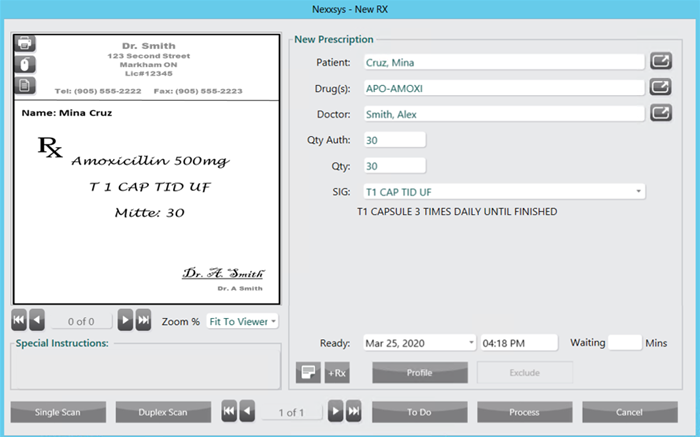
- Select Process. The prescription opens in the Rx Detail window.
- If a Duplicate Checking message appears, see Duplicate Checking.
- Verify the information in the Rx Detail window and make any necessary changes.
- Select Fill to process the prescription.
Duplicate Checking
If the patient already has a record of this medication on their Profile, a Duplicate Checking message will appear to confirm how the new prescription should be added to the patient's Profile.
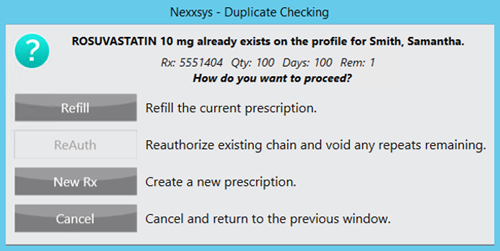
The Duplicate Checking prompt displays information about the existing prescription on file.
- Rx#
- Quantity filled
- Days supply
- Refills remaining
Based on the information provided, select one of the following options:
- Refill - refills the prescription that is currently on file.
- New Rx - creates a new prescription and record on the patient's Profile.
- Cancel - closes the Duplicate Checking message and returns to the New RX window.